Support

Product support

Find answers in the FAQ below. Detailed guides for the device, Paddock and the website are coming soon.

Downloads

Video One Paddock runs on your PC. The device software is installed on the unit from Paddock over Wi-Fi, see the firmware FAQ. Mac support is coming soon.

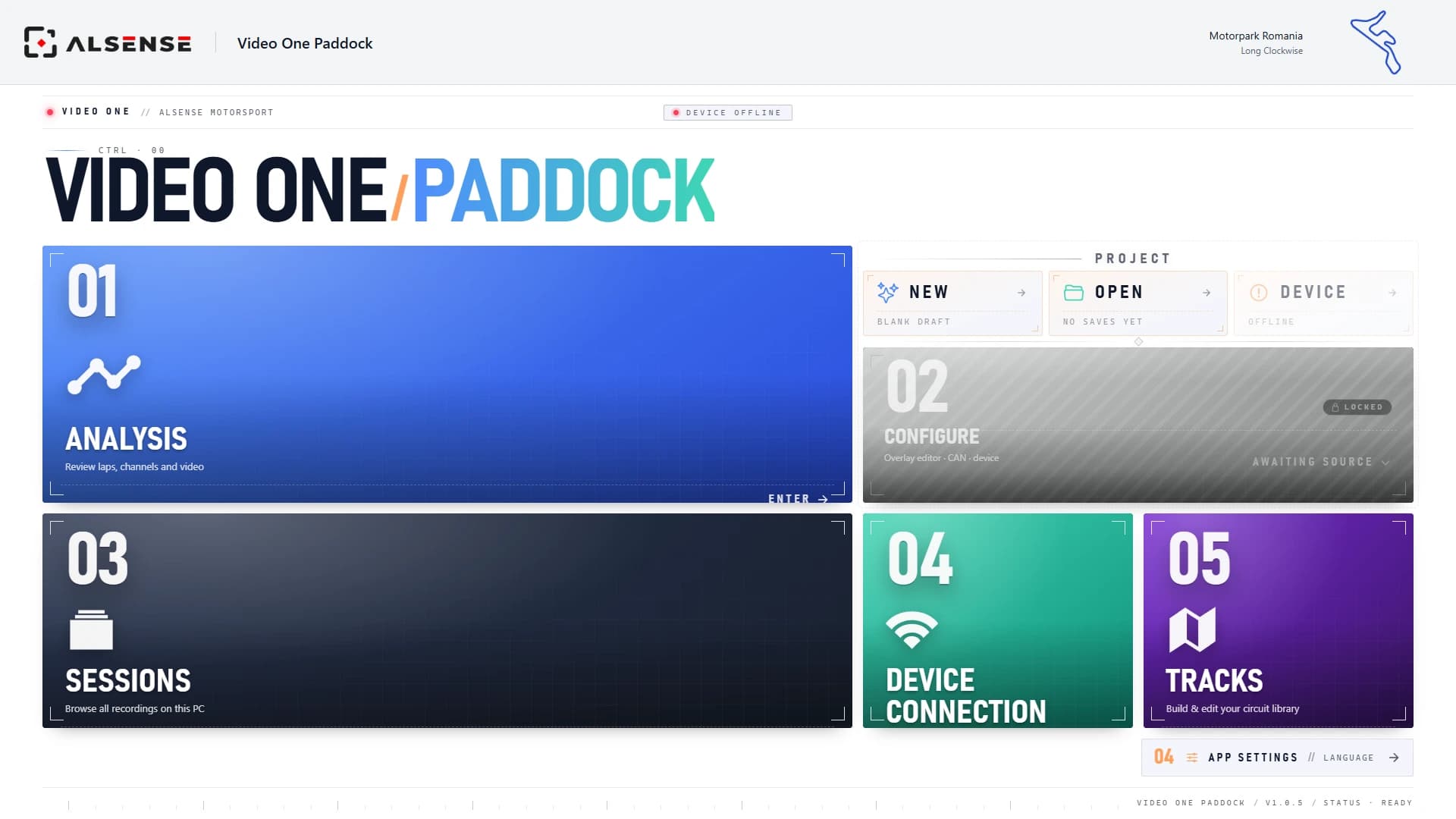
Video One Paddock home screen

Video One Paddock

The desktop app: analysis, overlay and track editors, live preview and device configuration.

Current version1.0.9Released 26 November 2026
Download for Windows
What changed in 1.0.9
  • Home: a working start page with your latest session, recent sessions, the last camera you connected and recent projects.
  • Analysis: mini sectors with purple/green/yellow timing colours, a new Sectors widget, and the track map and charts banded by sector.
  • Analysis: the top display stays pinned while you scroll, and the Channels button sits next to HOME with the channel list beside the video.
  • Tracks: 53 more circuit layouts in the built-in track catalog.
  • CAN: built-in databases for Porsche 911 GT3 Cup (992 and 991.2) and BMW F/G series, ready to import, and CAN setups now reach the camera in the format it decodes.
  • Device connection: steadier when the camera is busy, reconnects on its own and no longer loses settings changes made in quick succession.
  • Sessions import: shows copy progress and can be cancelled.
  • Clearer, more legible text throughout.
Previous versions (2)
  • 1.0.8, 3 November 2026Download
    • Sessions: when your library is empty, Paddock offers to download an example session from Alsense (a real lap at Motorpark Romania with video and telemetry), so you can explore Sessions and Analysis before connecting a camera
    • Analysis: click anywhere on the track map to jump every lap to that point of the circuit
  • 1.0.6, 17 October 2026Download

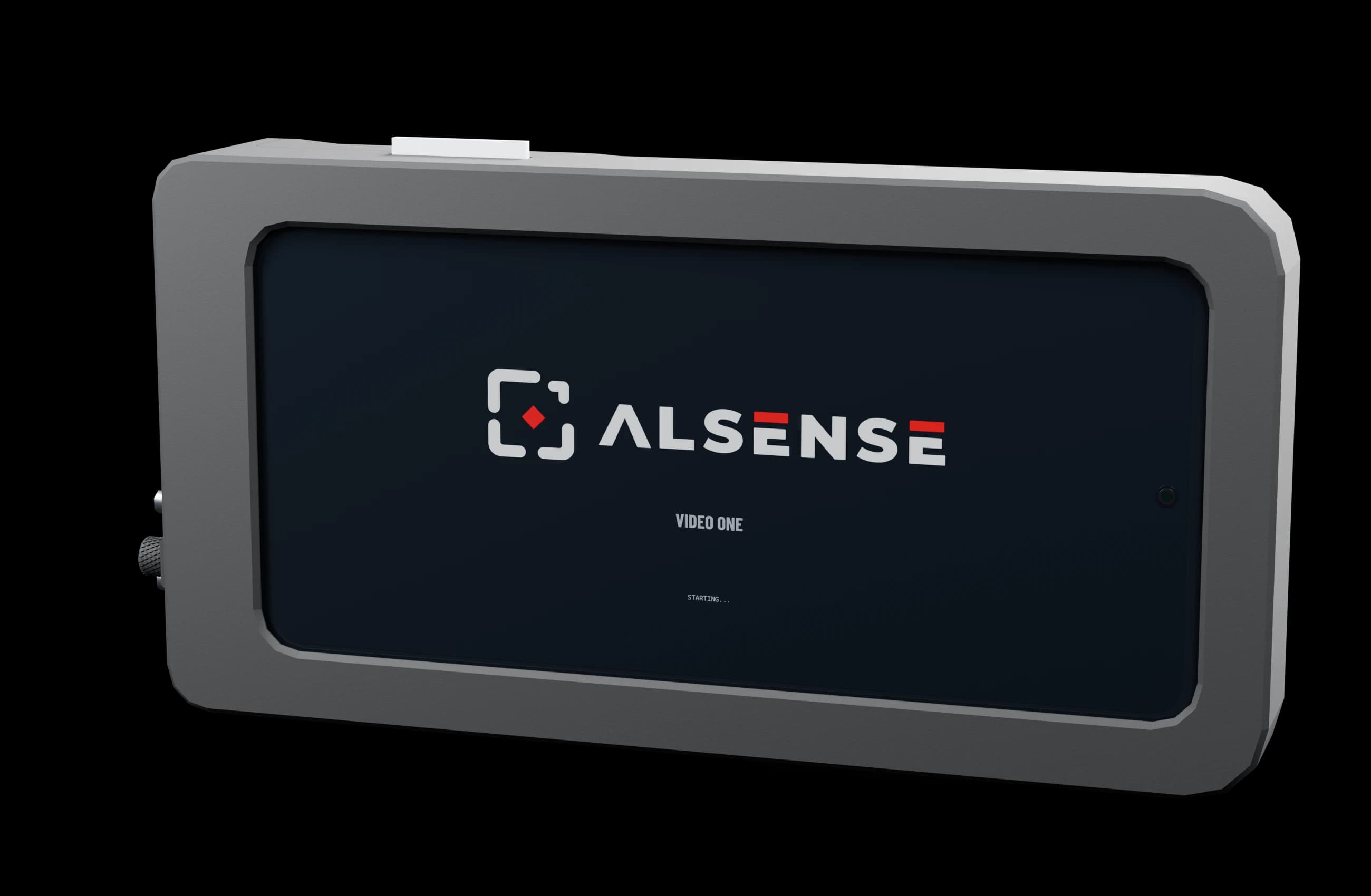
Video One, front three-quarter view

Video One firmware

The software that runs on the unit, sensor-board firmware included. Installed from Paddock over Wi-Fi: open the device card and press Update software.

No release published yet.

Support guides

Step-by-step instructions with photos, screenshots and video walkthroughs. These guides are coming soon. Planned topics are listed below.

Coming soon

Device operation

Set up and use Video One in the car.

  • Mounting, power and camera connections
  • Your first recording: controls and status indicators
  • SD cards, storage and file transfer
  • Mobile app: video preview and quick configuration
  • GPS, lap timing and circuit selection
  • Connecting CAN, a logger or a dash
  • Wi-Fi and network setup
  • Firmware updates and troubleshooting
Coming soon

Video One Paddock

Analyse sessions and configure your video and data setup.

  • Installing and updating Paddock
  • Importing recordings and organising sessions
  • Reviewing video, telemetry and track position
  • Comparing laps and reading the time delta
  • Selecting channels and working with graphs
  • Overlay editor: widgets, clusters and layouts
  • Track editor: circuits, start lines and sectors
  • Live preview and wireless device configuration
Coming soon

Streaming and website

Manage your account, stream sessions and review them online.

  • Creating an account and claiming your device
  • Connecting your device and starting a stream
  • Sharing, replacing and disabling viewing links
  • Watching live video and telemetry
  • Finding and reviewing recorded sessions
  • Browser analysis: laps, channels and track position
  • Managing devices, settings and updates remotely
  • Plans, subscription settings and usage
  • Account access and connection troubleshooting

Claiming a device FAQ

Where do I find my claim code?

The claim code ships with your Video One, printed on the card in the box. It is a short code like AB4K-7NPX.

Enter it under Claim a device in your dashboard. The code is not case sensitive.

My claim code is not accepted

Check for easy-to-confuse characters first; the code alphabet avoids them, so there is no letter O or number 0.

If the code still fails, the device may already be claimed, for example after a return. Contact support and we will sort out ownership.

Going live FAQ

The device is online but not streaming

Online means the device is connected to our service. Streaming starts when a session is started on the device itself.

Once streaming starts, the dashboard shows LIVE within a few seconds.

How do others watch my stream?

Create a share link on the device page. Anyone with the link watches live in a browser, no account needed. A new link replaces the old one; turning sharing off revokes it everywhere.

Watching FAQ

Which browsers work?

Use a current version of Chrome, Edge, Firefox or Safari on your computer or phone. No plugin or app is needed to watch.

The stream will not connect

Check the device card first: if the device is not LIVE, there is nothing to connect to yet.

Some networks block live video connections. Try mobile data to check whether the network is the cause. If it still fails, contact us with the time it happened and the browser you used.

Recordings FAQ

When does the stream capture appear?

With a plan that includes cloud storage, the stream is captured at 720p while you stream and appears under Sessions with a Watch button shortly after the session ends. The full-quality recording stays on the unit.

How do I transfer recordings?

Transfer recordings by SD card or wirelessly. Cloud transfer requires an active streaming plan. Recording and desktop analysis work without a subscription.

Video One Paddock FAQ

Video One Paddock features and download

What can I do in Video One Paddock?

Compare laps with video, telemetry and track position in sync. You can also create video overlays, edit circuits, preview video in real time and configure the device wirelessly.

Do I need a subscription to use the software?

No. Video One Paddock is included with Video One and is free to use on PC. Mac support is coming soon.

What is the mobile app for?

Use the mobile app to preview the camera view and quickly change device settings. Use Video One Paddock on your PC for detailed video and data analysis.

Firmware and updates FAQ

How does the device update?

Updates are installed from Video One Paddock on your PC. Download the new version from the Downloads section above, connect to the unit on the same network, open its device card and press Update software. Paddock uploads it, shows the current and new version, installs it and the unit restarts. The sensor-board firmware is updated along with it. Updates cannot be installed while a recording is running.

Account FAQ

How do I reset my password?

Use Forgot password on the login page. You will get an email with a link to set a new password.

How do I delete my account?

On your Account page, choose Request account deletion to send us a message, or email us from the address linked to your account. Download any recordings you want to keep before requesting deletion. We will confirm the next steps with you. Invoices are kept as required by law.

Contact support

Tell us what happened and when. Include your device serial number and any error message.